AI & Tools | 5 May 2026
MCPs Explained for Designers
What MCPs are, why they matter for designers, and how I'm using them in my own workflow.
Intro — who and why
I’m a designer, not an engineer. I understand code at a philosophical level — I know how it works, I just can’t make it run. Or at least, I couldn’t until now.
More and more of my work now happens through Claude: pulling context and creating systems in Figma, updating tasks in Notion, checking content in Sanity, and helping with deployment workflows in Vercel.
When you stop to think about it, it’s quite remarkable. You type a sentence into one app, and that app starts doing real work inside another. Magic? No.
The thing that makes all of this possible is a piece of plumbing called MCP. And almost nobody is explaining it to designers (because until AI, designers didn’t care about it).
Here’s the version I wish someone had handed me when I started. Big thanks to my dear friend, designer Gabe Atanasov, who is kindly explaining a lot of AI Concepts to me. He truly cared about MCPs before AI was a trend.
The “know-it-all” new hire at work
Imagine Claude is a brilliant new hire on your team. Smart, fast, ready to work. Hyperactive, full of ideas, a nightmare.
But on day one, they have no credentials. No Figma seat, no Notion login, no access to your shared drive. They can hear what you ask for and they can think clearly about it — but they can’t actually open your Figma file or read your Notion page on their own.
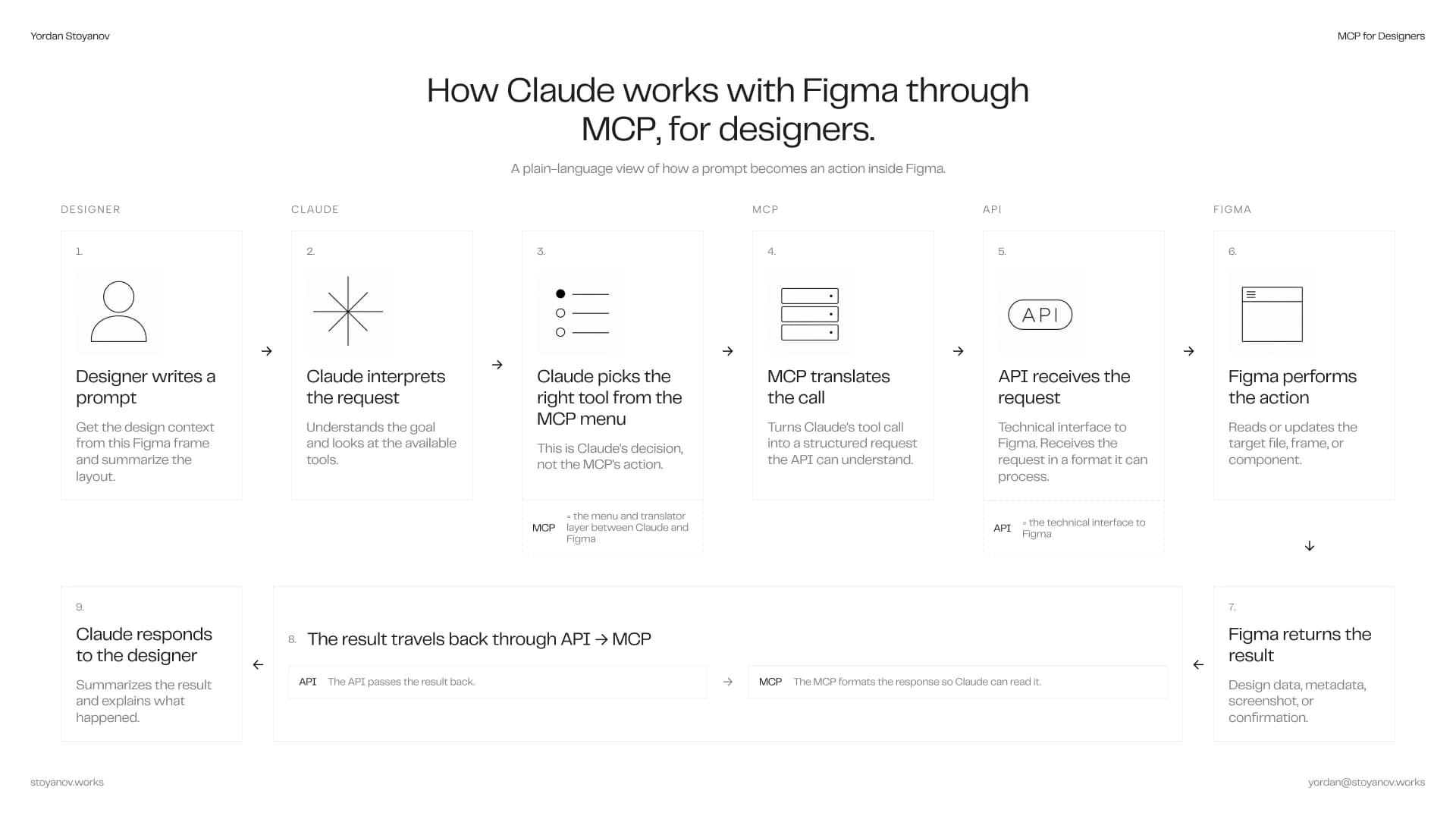
An MCP — that stands for Model Context Protocol — is how you hand them the credentials. When I “connect” Figma in Claude, I’m not installing software. I’m authorizing Claude to talk to a small service Figma runs on their servers, with a specific set of permissions I approved. Same for Notion, Sanity, Vercel, Gmail. Each one is a separate credential, granted one app at a time — and Claude can only see or do what each one allows.
Now the brilliant new hire can actually do the work in the apps. And make his money’s worth.
That’s the whole idea. Like USB-C: one standard shape, works with everything that supports it. Yes, I chose USB-C as an example.
Why does MCP even exist
Before MCP, every AI integration was a custom build.
Want Claude to read Notion? Sure — someone has to build a custom integration. Want it to read Figma too? Another custom build. Different code, different login flow, different bugs.
MCP fixes that with one rule: if an app exposes an MCP, any AI that speaks MCP can use it. Build once, plug in anywhere.
For me, this means the same Claude that helps me code and develop my portfolio at www.stoyanov.works can also pull frames from Figma, update tasks in Notion, deploy the site to Vercel, and write content to my Sanity dataset.
MCPs & APIs — not so difficult, trust me
An API stands for Application Programming Interface and is the official way one piece of software talks to another. Every modern app has one. A few examples:
- It’s how Notion can embed a live Figma frame inside a doc.
- It’s how Spotify shows up inside your Instagram story.
- It’s how a Webflow site can publish to a custom domain on Vercel.
- It’s how your fitness tracker syncs to Apple Health overnight.
- It’s how Zapier can trigger a Slack message when a new row hits your Airtable.
It’s been around for a loooong time. So then you might be wondering: APIs already exist. Notion has one. Figma has one. So why the new word?
Here’s the difference, in the simplest terms.
An API is the kitchen. Raw machinery, no patience, no manners. Order wrong and you don’t get fed — you get yelled at by the chef and a tomato to the face. The kitchen speaks one language and it isn’t yours.
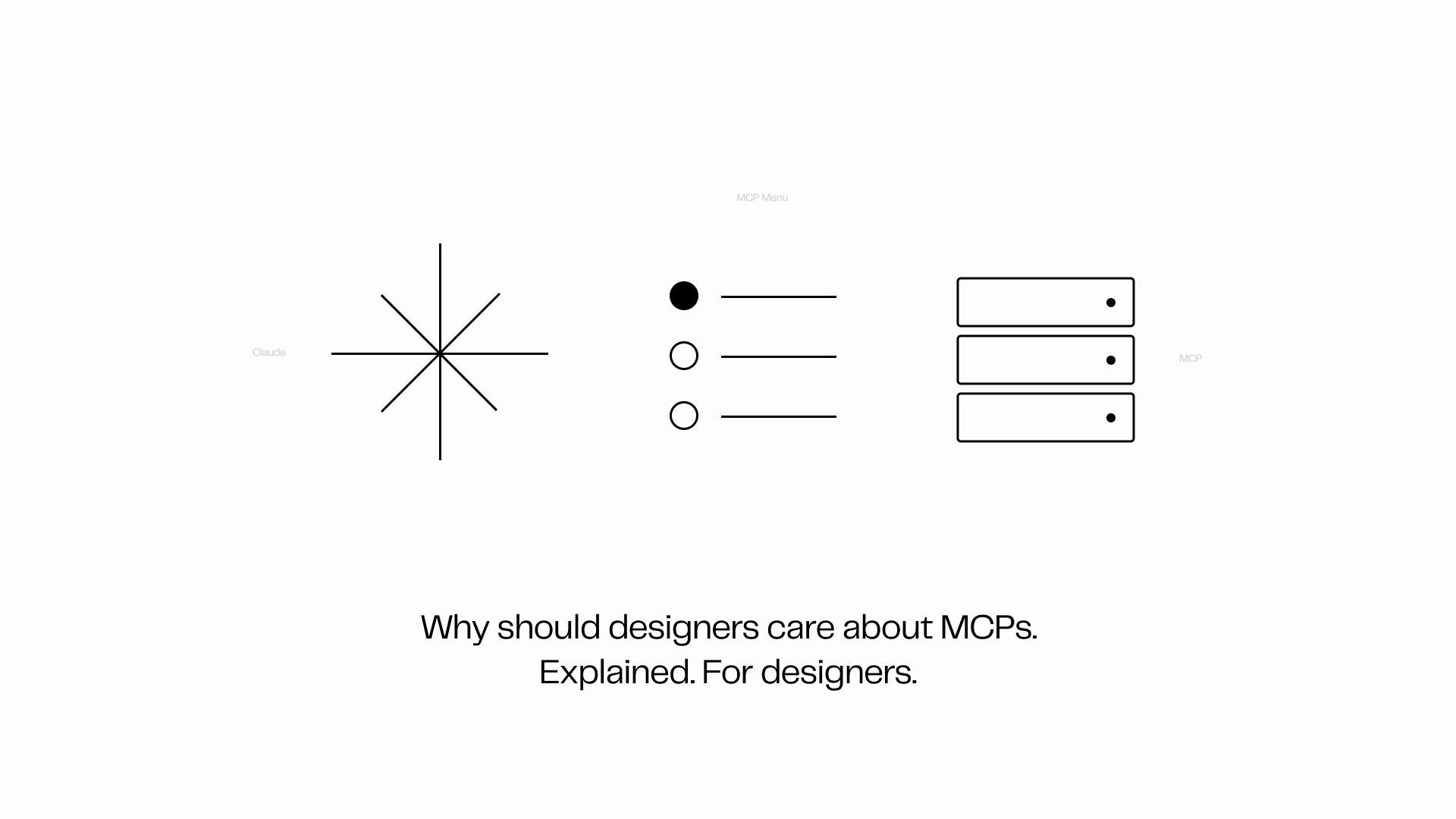
An MCP is the waiter. Claude walks in, the waiter MCP hands over a menu — “Here’s what you can order.” Claude picks something, the waiter takes it back to the kitchen, and the chef actually cooperates. Why? The waiter MCP speaks kitchen language fluently. Translation handled.
You’re the customer. You don’t have to know how the kitchen works. You don’t have to memorize the menu. You just tell Claude what you want, and the food shows up.
The one lesson that actually matters
Here’s the part that will change how you work, if you take nothing else away.
Each MCP comes with a list of named actions Claude can do. Notion’s list has things like search, fetch a page, create pages, update a page, add a comment. Figma’s has get the design, get the file structure, write to the canvas, find a component in the design system. Roughly a dozen each, last I checked.
Each action has a name, a description, and a list of inputs it needs. Written by whoever built the MCP.
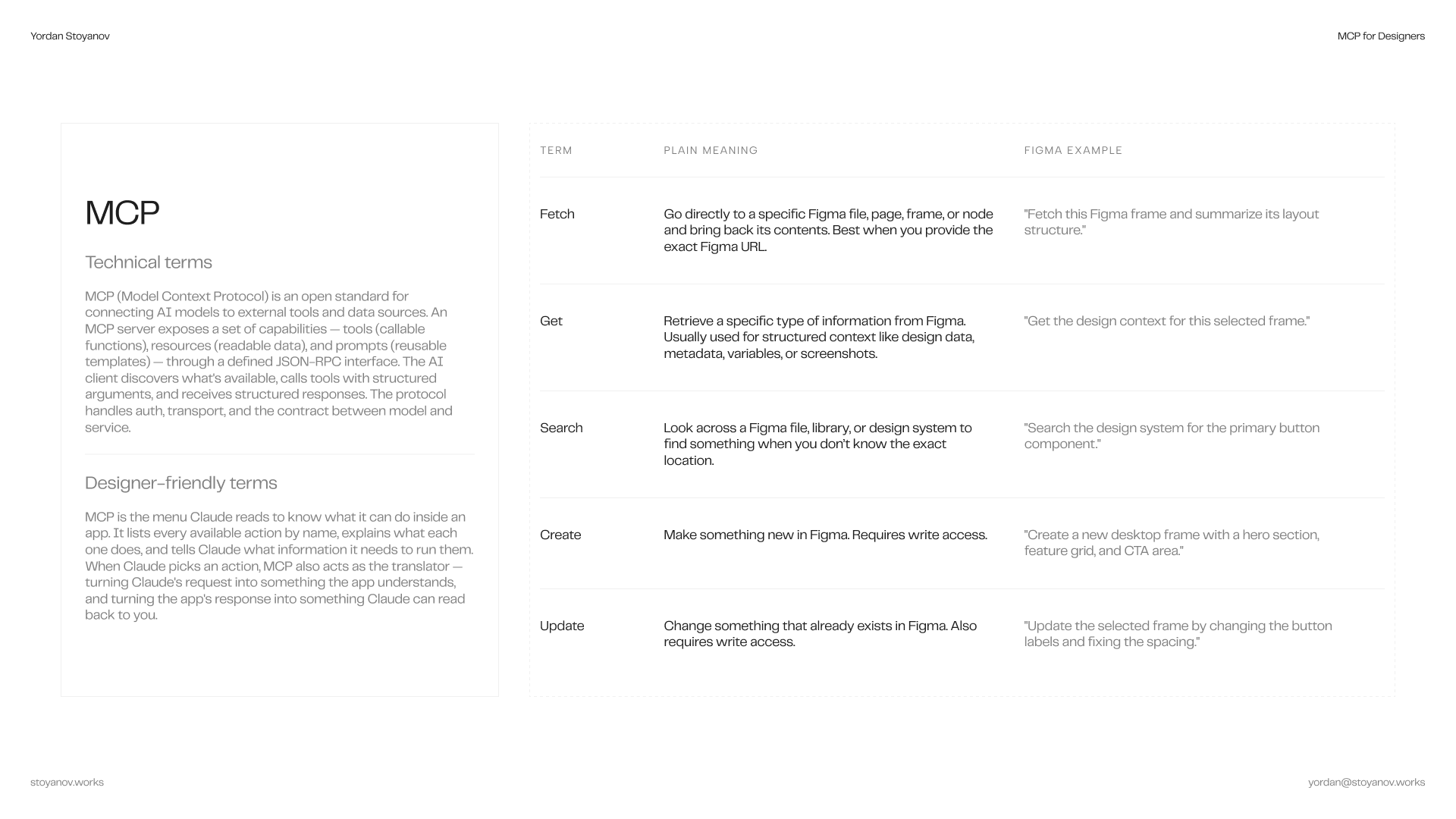
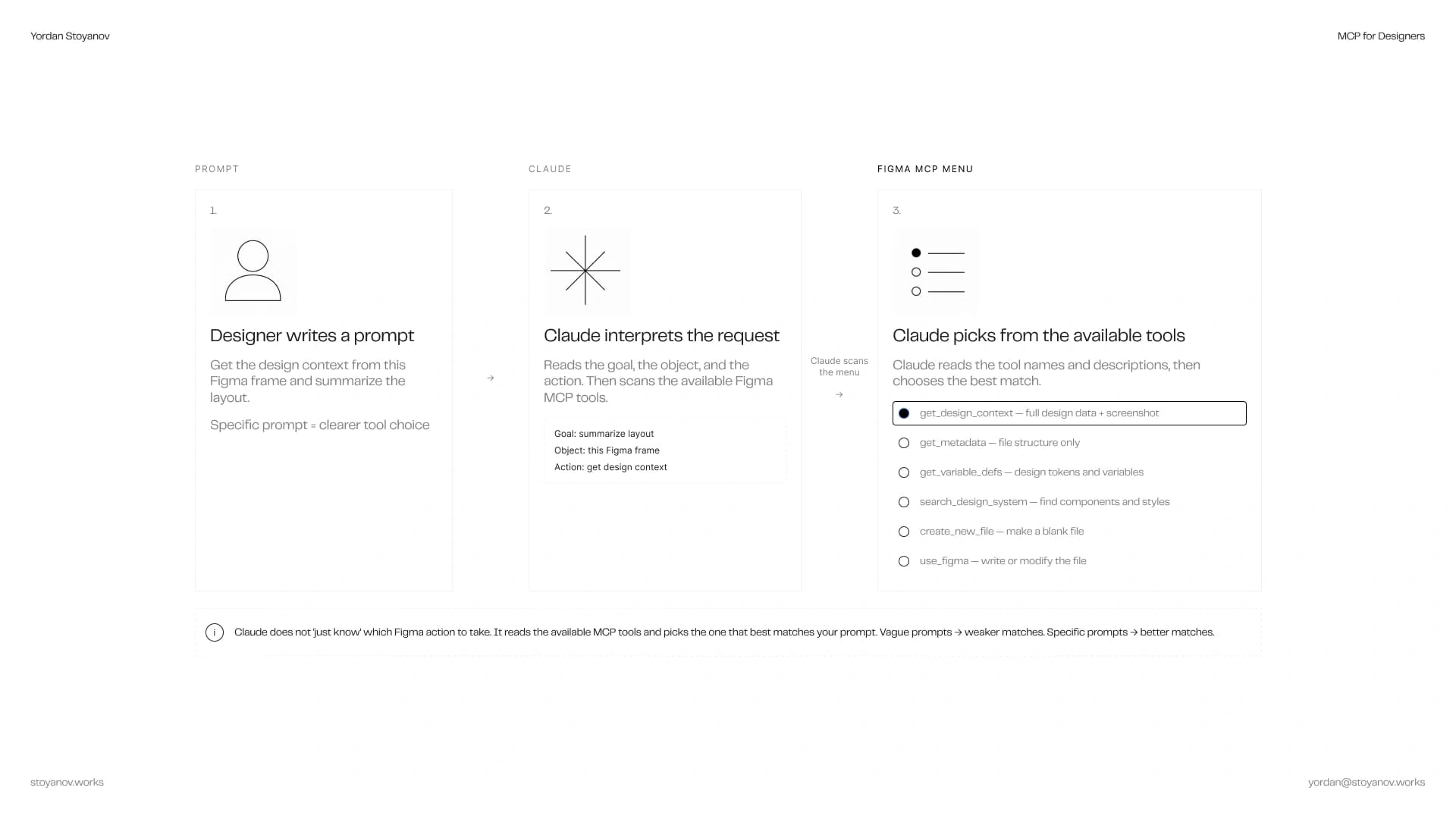
When I ask Claude to “pull the components from this Figma frame and turn them into React code,” Claude doesn’t magically just do it. Claude reads the menu — those descriptions — and picks which action to run, in which order. If it picks the right ones, the task works. If it picks the wrong ones, I get a confident-looking answer that’s quietly wrong.
The leverage point hidden here: Claude picks actions by reading their descriptions. You can’t change those descriptions — they’re baked in. But you can change the part of the system you actually control: the way you ask.
Five things this changes about how I work
1. I name the verb, not the outcome.
“Get this from Figma” is vague. Figma has get_design_context, get_metadata, get_variable_defs, search_design_system, use_figma — at least five verbs depending on what I want. Claude has to guess.
“Get the design tokens from this Figma frame” maps to one verb. get_variable_defs. No guessing.
I write in verbs that match the menu, not in vague outcomes.
2. I name the object precisely, with a URL when possible.
“The Figma frame” makes Claude guess which file, which page, which frame. Pasting the actual frame URL ends the guessing game — every Figma URL contains the file ID and the node ID, so it tells Claude exactly where to look.
Select the frame → ⌘CMD + L (Mac) / Ctrl+L (Windows) — Link to the frame copied in your clipboard, good job.
This one feels small, but it’s the biggest quality bump in my workflow.
3. I sequence things explicitly when I’m chaining steps.
Most failures happen at the seams between two actions. “Get this Figma frame and rebuild it as a React component” leaves the order ambiguous — should Claude grab the screenshot first? The variables? The structure?
“First, get the design context from this Figma URL. Then check which design system components are linked. Then write the React component using those tokens.” That works.
I’m basically writing pseudo-code in plain English. Designers do this naturally with art directors — “first crop tight, then warm the highlights, then add grain” — same instinct, applied to software.
4. I connect fewer MCPs, not more.
Every MCP I connect adds more items to Claude’s menu. More items means more decisions, which means more chances for Claude to pick wrong. I connect what I use weekly. I disconnect the rest. Adding three more “just in case” makes everything else worse.
5. When something feels off, I ask which action was used.
Wrong action is the most common silent failure. Claude will happily return a confident answer based on the wrong call. Asking “which Figma tool did you use?” is a free debug step. If it says it ran get_metadata when I wanted full design context with code, I now know to be more specific next time.
The deeper shift
Designers tend to think of AI as a chat partner.
With MCPs connected, it’s closer to a junior PM with access to all your tools. You’re not having a conversation — you’re delegating a task that’s about to get executed by software, in your real Figma file, your real Notion workspace.
The clarity required is closer to writing a Linear ticket than asking a colleague a question.
The designers who get the most out of this stack will be the ones who stop writing prompts like questions and start writing them like instructions: which app, which object, which action, in what order.
That’s the whole job.
Closing
MCPs are a quiet but fundamental shift. They turn Claude from a chat partner into something that can act inside the tools you already use. For designers, that means we’re no longer just describing what we want and copying the output by hand — we’re delegating real work across Figma, Notion, Sanity, and whatever else we plug in.
The trick is realizing what you’re really doing. You’re not chatting. You’re handing off a ticket to software that will execute it.
Once you internalize that, the prompts get shorter, the work gets done faster, and the menu starts to feel like muscle memory.
P.S. for the curious — what an MCP actually looks like
If you want to peek under the hood, here’s what one looks like. You don’t need to understand every line — just enough to see why those descriptions matter so much.
An MCP is a small program. A few hundred to a few thousand lines of code. It exposes a list of actions, handles each call when Claude makes it, and returns the result. Underneath, it does whatever the action requires — hit an API, read a file, query a database.
Here’s a real action from an open-source Figma MCP:
server.tool(
  "get_figma_data",                           // 1. action name
  "Get layout information about a Figma file. " +
  "Use this when the user references a Figma URL or wants " +
  "to implement a design from Figma.",        // 2. description Claude reads
  {                                            // 3. what it needs
    fileKey: z.string().describe(
      "The key of the Figma file, " +
      "extracted from the URL like figma.com/file/{fileKey}/..."
    ),
    nodeId: z.string().optional().describe(
      "The ID of a specific node to fetch."
    ),
  },
  async ({ fileKey, nodeId }) => {            // 4. what runs when Claude calls it
    const figmaData = await fetchFigmaFile({ fileKey, nodeId });
    const simplified = simplifyForLLM(figmaData);
    return {
      content: [{ type: "text", text: JSON.stringify(simplified) }],
    };
  }
);
Four parts:
- The name — what Claude sees on the menu. Here, get_figma_data.
- The description — the most underrated part. Claude reads this to decide when to use the action. A vague description (“gets data from Figma”) leads to wrong picks. A specific one (“use this when the user references a Figma URL”) leads to the right pick. This is the leverage point. The vendors who write good descriptions ship better-feeling MCPs.
- The inputs — what arguments are needed. Claude reads the little description on each one to figure out what to put in. If you paste figma.com/file/abc123/MyDesign, Claude knows to extract abc123 because the description literally tells it where in the URL to look.
- The runner — the actual code that executes. In this case: hit Figma’s API, simplify the response, return text. Could just as easily query a database or send an email.
The lesson hidden in the code: the descriptions are the API for Claude. When the vendor writes them well, Claude picks correctly and chains actions correctly. When they’re sloppy, Claude guesses. If you ever build a custom MCP yourself — say, one wrapping a CLI tool you wrote, or syncing two systems you use — the descriptions will be where 80% of the quality comes from. Not the runner code. The words.
That’s the whole secret.